Objective
A practical step-by-step guide to troubleshoot DNS client and resolver, including prerequisites, exact navigation, validation, troubleshooting, and rollback.
Prerequisites
- Back up the current device configuration before changing production networking.
- Confirm firmware version, interfaces, addressing and routing scope.
- Identify dependencies such as policies, NAT, routes, VPN selectors and DNS.
- Prepare an out-of-band recovery path before changes that can affect management access.
Step-by-step procedure
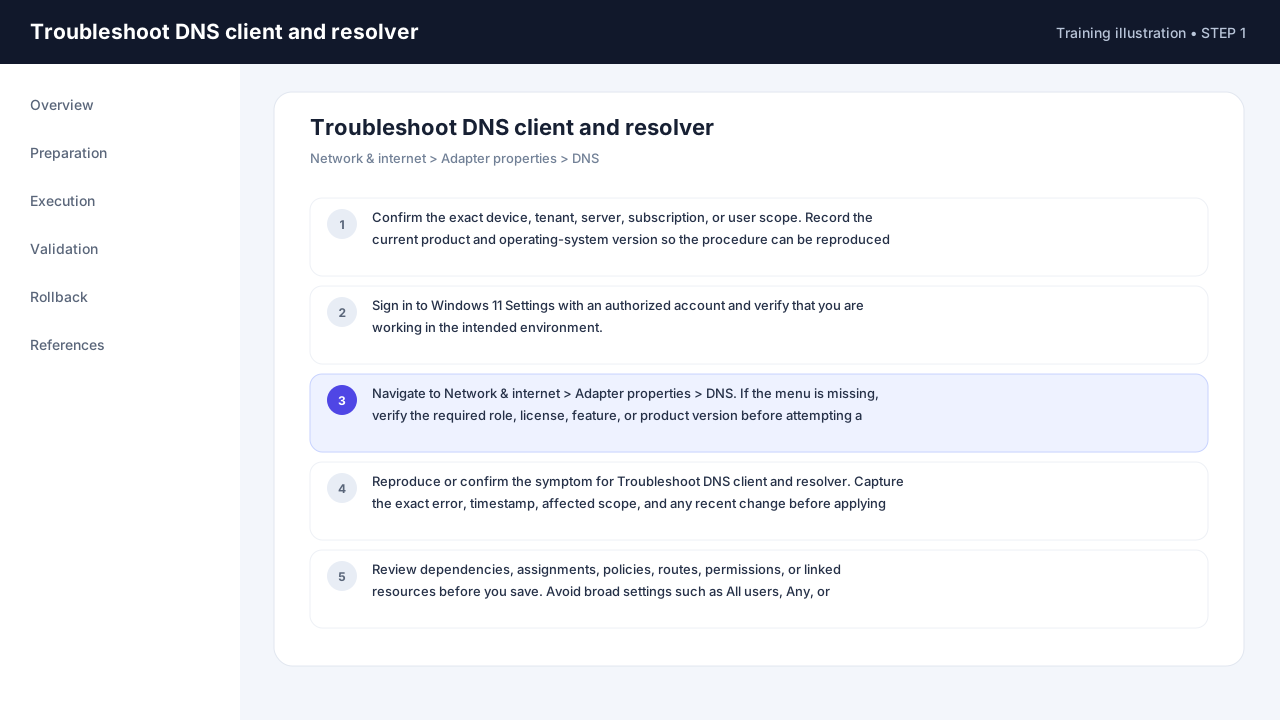
- Confirm the exact device, tenant, server, subscription, or user scope. Record the current product and operating-system version so the procedure can be reproduced later.
- Sign in to Windows 11 Settings with an authorized account and verify that you are working in the intended environment.
- Navigate to
Network & internet > Adapter properties > DNS. If the menu is missing, verify the required role, license, feature, or product version before attempting a workaround. - Reproduce or confirm the symptom for Troubleshoot DNS client and resolver. Capture the exact error, timestamp, affected scope, and any recent change before applying a fix.
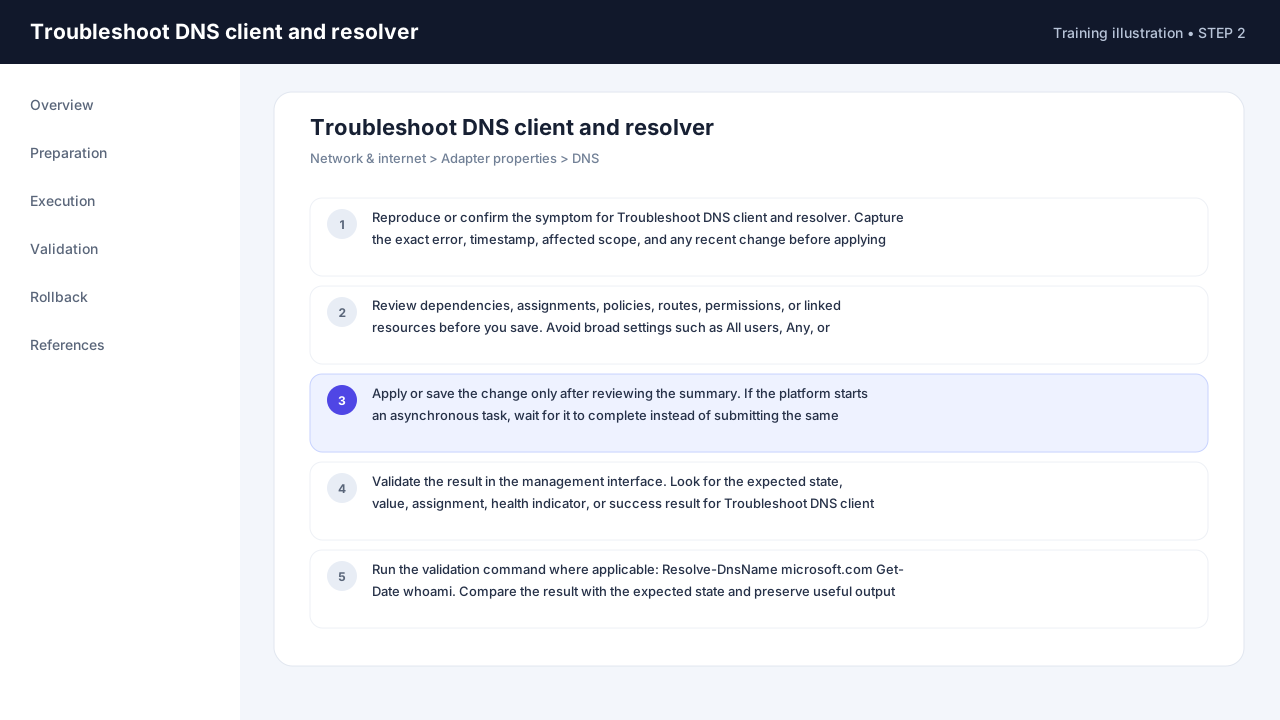
- Review dependencies, assignments, policies, routes, permissions, or linked resources before you save. Avoid broad settings such as All users, Any, or unrestricted access unless they are explicitly required.
- Apply or save the change only after reviewing the summary. If the platform starts an asynchronous task, wait for it to complete instead of submitting the same operation again.
- Validate the result in the management interface. Look for the expected state, value, assignment, health indicator, or success result for Troubleshoot DNS client and resolver.
- Run the validation command where applicable:
Resolve-DnsName microsoft.com
Get-Date
whoami
. Compare the result with the expected state and preserve useful output for the change record. - If the result is not correct, stop before destructive reset or deletion. Restore the last known-good setting or configuration, then collect logs and error details before the next attempt.
- Document what was changed, who approved it, the validation result, the version tested, and the exact rollback action. A professional change is complete only after verification.
Commands and checks
Resolve-DnsName microsoft.com
Get-Date
whoami
Success validation
- Verify the final state in the product interface and confirm there are no new alerts or errors.
- Test the task from the actual user, client, network, or workload perspective.
- Save evidence of the working state so it can be compared during future troubleshooting.
Rollback and troubleshooting
- Return to the documented previous value or restore the configuration backup made before the change.
- If the impact is unclear, stop before delete/reset operations and return to the last known-good state.
- Capture the exact error text, event/log timestamp, and affected scope before further changes.
Caution: Avoid destructive reset, profile deletion, broad security scope, or unrestricted network access until backups and impact are understood.
Official source: Microsoft — Windows Server official documentation. Product menus can change with service updates; verify the screen and version before applying production changes.